Why Choosing a Gaming Mouse Feels Overwhelming
Choosing a gaming mouse isn’t just a matter of lining up spec sheets and comparing numbers. Search for how to pick one and you’re immediately hit with a wall of jargon — DPI, polling rate, sensor model names, switch type, wired vs. wireless, weight in grams. On top of that, a handful of loosely sourced claims circulate everywhere: “lighter is always better,” “wireless is basically the same as wired now,” “grey-import mice aren’t covered by warranty.” With so much conflicting information floating around, it’s hard to know what to actually trust.
This article is not a ranking that crowns a single “best” mouse. Instead, its goal is to give you a flow for thinking through the decision yourself, in this order: grip style, then hand size and shape, then weight, then sensor/connection type/polling rate, then switches, then what buying in Japan specifically involves, and finally budget and use case — so you can judge for yourself which mouse fits you. Follow that order and you should be able to evaluate any model on your own, including ones never mentioned here.
Know Your Grip Style
The real starting point for choosing a mouse isn’t the spec sheet — it’s understanding your own grip style. Japanese-language gaming-mouse content generally groups grip styles into three categories, and the same mapping shows up consistently across independent sources (electronics-retailer explainer content, peripheral-focused media, and official brand-store columns): かぶせ持ち maps to what’s commonly called the palm grip, つかみ持ち to the claw grip, and つまみ持ち to the fingertip grip. Worth keeping in mind: this isn’t an official, formally standardized taxonomy — it’s simply terminology that has become widely shared across the industry.
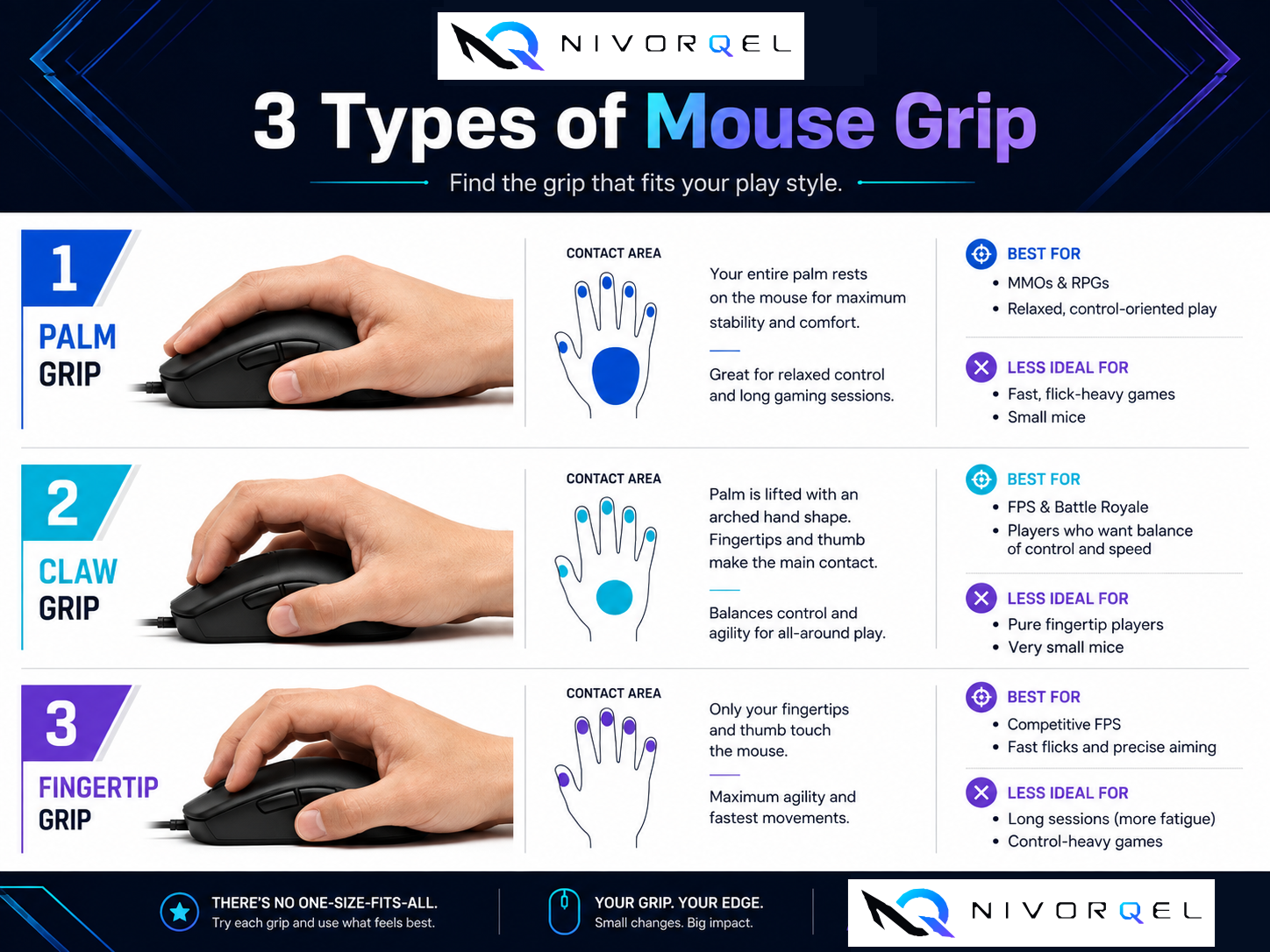
The Palm Grip
You rest your entire palm on the mouse and move it with the weight of your whole hand, not just your fingertips. Because the whole hand supports the mouse, this grip is generally said to feel stable and less fatiguing over long sessions.
The Fingertip Grip
Your palm never touches the mouse; you pinch and move it using only your fingertips. This is said to make it easier to take advantage of fine wrist and finger movements.
The Claw Grip
Your fingers arch upward, and only the back/heel of your palm touches the mouse. It’s essentially a hybrid, combining characteristics of both the palm and fingertip grips.
There’s a rough consensus across sources about which shapes and sizes tend to pair well with each grip — palm grips with larger, ergonomically contoured shapes; claw grips with mid-size, taller-backed shells; fingertip grips with small, lightweight designs. But again, this isn’t a formal standard; it’s more of a rule of thumb that varies by manufacturer and outlet. Figuring out which grip you’re closest to first gives you the foundation for the next step: shape, size, and weight.
Choosing by Shape, Size, and Weight
Matching Hand Size to Mouse Shape
Plenty of sites publish charts along the lines of “if your hand is over X cm, get this size,” but these aren’t official standards set by any industry body or standardization organization — they’re benchmarks each site or manufacturer sets on its own, and the numbers don’t fully agree from one source to the next. For that reason, this article deliberately does not publish a definitive “X cm or more = this size” chart of its own.
A more practical approach: treat hand size as just one data point among several. Where possible, try holding the actual mouse in a physical store; if you’re buying online, compare the manufacturer’s published dimensions (length, width, height) against your own hand or a mouse you already use and like. Combining hand size with the grip style from the previous section — rather than relying on hand size alone — makes it much easier to narrow down a shape that actually fits you.
The Lightweight Trend, and What to Watch For
In recent years, weight reduction — especially for wireless models — has become a clear trend in the gaming mouse market. That said, exactly what counts as “lightweight” varies by source: different outlets cite different ranges (45-65g, 50-70g, 60-80g, and so on), and there’s no single authoritative, industry-wide threshold that has actually been established. This article deliberately avoids writing as though “lightweight gaming mouse = X grams” were a fixed, agreed-upon number.
As a reference point, official weights for a couple of current wireless models on the market include 60g for the Logicool G PRO X SUPERLIGHT 2 and 54g for the Razer Viper V3 Pro (both manufacturer-published specs; more detail below). These are examples of what falls in the lighter bracket — not a claim that either number is “the correct weight.” And lighter isn’t automatically better, either: even within the same weight range, factors other than raw grams — shell rigidity (how much it flexes), or, for wireless models, the trade-off against battery capacity — can significantly affect how a mouse actually feels to use. Weight is one factor among several, and it’s worth weighing alongside shape, rigidity, and battery life rather than in isolation.
Understanding Sensor, Connection Type, and Polling Rate
Once grip style, shape, and weight have narrowed things down, it’s time to read the rest of the spec sheet correctly. This section covers three points that are especially easy to misread: DPI (CPI), wired-vs-wireless latency, and polling rate.
DPI (CPI) and Sensor Accuracy
DPI (Dots Per Inch) is technically a printer term; CPI (Counts Per Inch) is the more technically accurate term for a mouse sensor’s resolution. In practice, though, “DPI” is used almost interchangeably and remains by far the more common label.
The easy misconception here is that a higher maximum DPI (CPI) number automatically means higher performance or precision. That’s not accurate. Real-world tracking accuracy and stability depend much more heavily on the quality of the sensor itself — tracking precision, how well lift-off distance is controlled, resistance to acceleration errors, and so on. Multiple independent outlets consistently point out that the extreme maximum-DPI figures printed on spec sheets — tens of thousands of DPI — go far beyond any range that’s actually useful in practice, and function mainly as a marketing number.
It’s also often said that many players in competitive FPS titles use relatively low DPI settings (roughly 400-1600 DPI) paired with a low in-game sensitivity. Keep in mind this is an aggregate tendency in individual player preferences, not a standard that says there’s one “correct” setting.
Wired vs. Wireless Latency
The old conventional wisdom — “wireless mice have more latency than wired ones” — no longer holds up as simply as it used to, according to some independent tech-review outlets, largely because of the spread of high-performance proprietary 2.4GHz wireless technologies from major manufacturers (Logicool’s LIGHTSPEED, Razer’s HyperSpeed, and similar). It’s important to be clear about the scope of that claim, though: it applies specifically to high-end models using each manufacturer’s own proprietary wireless technology, and it cannot be generalized to cheap, generic 2.4GHz-receiver mice as a category.
Independent measurement sites are reported to have data on the specific millisecond-level latency difference, but as of this writing that primary data hasn’t been directly confirmed, so no specific figure can be stated here with confidence. What should be avoided is any unconditional claim that “wireless is exactly the same as wired” or that “wireless has zero latency” — the actual difference you’d feel varies by product, connection environment, and usage conditions. It’s also worth noting that latency attributable to the mouse and its connection method is only one part of the overall input-latency chain, which also includes the OS and the game’s rendering pipeline.
What Polling Rate Should You Choose?
Polling rate (measured in Hz) is how many times per second the mouse reports its position to the PC. 125Hz corresponds to a report every 8 milliseconds, 500Hz every 2 milliseconds, and 1000Hz every 1 millisecond.
Going from 125Hz to 1000Hz meaningfully shrinks that theoretical response interval, from 8ms down to 1ms. Pushing further, from 1000Hz to 4000Hz or 8000Hz, only shortens that interval by a very small additional amount — several outlets describe this as a difference most players wouldn’t actually notice (though independent primary testing data hasn’t been confirmed as of this writing). Multiple peripheral-focused outlets also note that higher polling rates, particularly 8000Hz, tend to come with a cost: more CPU load, and for wireless mice, higher battery consumption.
In practice, 1000Hz is generally considered plenty for most players and setups, with 4000Hz/8000Hz more often positioned as an extra option for competitively minded players running high-refresh-rate monitors and high-end PCs. Rather than assuming “higher Hz is unconditionally better,” it’s worth judging based on whether it actually matches your own setup and use case.
Switches and Durability
Once you’ve worked through shape, weight, and sensor, the next thing to look at is the switch. It’s not something you can judge just by looking at the mouse, but it directly determines how clicking feels day to day, and how long that feel lasts. Mouse click switches broadly fall into two types: mechanical switches and optical switches. Optical switches are generally said to be structurally less prone to chatter (unintended double- or multi-clicks) caused by wear or oxidation on physical contacts. That doesn’t mean it’s fair to flatly conclude “mechanical switches break easily,” though — it’s better understood as a relative structural tendency rather than a hard rule.
Manufacturer-published “click durability” figures include examples like 20-50 million clicks for common mechanical switches (such as typical Omron-made switches) and around 90 million clicks for some optical switches (such as Razer’s third-generation optical switches). The Razer Viper V3 Pro, for instance, officially lists a rated 90-million-click durability as part of its specs. What matters here is that these are all manufacturer-calculated figures obtained under lab conditions — they don’t guarantee actual lifespan under real-world usage conditions (temperature, humidity, cleanliness, how hard you click, and so on). Treat them as a useful reference point, while keeping in mind that they’re manufacturer-published numbers, not independently measured real-world lifespans.
Buying in Japan: Domestic-Official Imports, Grey Imports, and Warranty
At this point you’ve covered how to choose the product itself. What’s left is what matters when actually buying in Japan: the difference between domestic-official imports and grey imports, warranty, and the main retail channels — covered here in order.
Domestic-Official Imports vs. Grey (Parallel) Imports
国内正規品 (“domestic-official” product) refers to a product imported and sold through an official domestic distributor under contract with the manufacturer. 並行輸入品 (“parallel import,” sometimes called a grey import) is a product imported through a different route, outside that official distributor channel. A common misconception here is that a grey-import product must be counterfeit — that’s incorrect. A grey import simply hasn’t gone through the official distribution route; it does not mean the product itself is fake.
What to Check About Warranty
Some explainer sources say manufacturer warranty coverage for grey-import products doesn’t apply in the same way it does for products bought through the official domestic-distributor route (more complicated warranty procedures, different handling of the warranty period, and so on), while other sources describe the situation differently — in practice, how warranty actually applies depends on the policy of the specific brand, product, and retailer. This article can’t state a blanket, cross-brand rule such as “grey imports never have warranty coverage” or “official products always come with N years of warranty.” Before buying, it’s strongly worth checking the specific warranty terms for that brand and retailer individually.
Main Retail Channels
Broadly, the channels for buying a gaming mouse in Japan break down as follows.
- Major electronics retailers: chains such as Yodobashi Camera (including its online store, Yodobashi.com) and Sofmap — large Japanese consumer-electronics chains that run dedicated gaming-device category pages and column content.
- PC specialty shops: independent PC/BTO (build-to-order) specialty shops, especially concentrated in Tokyo’s Akihabara district, are often cited as carrying gaming devices.
- Major e-commerce sites: Amazon.co.jp, Rakuten Ichiba (Rakuten’s online marketplace), and various shops accessible through price-comparison site Kakaku.com.
- Manufacturer official online stores: official stores run directly by manufacturers themselves, such as Logicool’s.
Because prices and stock levels shift over time, this article doesn’t list specific prices or stock numbers. Check each channel directly for current information when you’re ready to buy.
A Decision Flow by Budget and Use Case
Now let’s apply everything covered so far — grip style, shape/size, weight, sensor/connection type/polling rate, switches, and purchasing conditions — to actual use cases.
Choosing for FPS
In FPS titles, where reaction speed and aim precision translate directly into score, start from a shape that fits your grip style, then prioritize sensor accuracy — meaning tracking stability, not the raw maximum DPI number. As mentioned earlier, competitively minded players tend to favor a combination of relatively low DPI and low in-game sensitivity, but this isn’t an absolute correct answer; it’s something to tune to your own playstyle. On polling rate, 1000Hz is generally considered practically sufficient for most situations, with 4000Hz/8000Hz best thought of as an additional option for competitive players running high-refresh-rate setups.
Choosing for MOBA and Battle Royale
For MOBA and battle royale titles, the same basic decision order applies — grip style, then shape, then weight, then sensor, then connection type, then switches — just as with FPS. Since different genres demand different kinds of input, the practical approach is to prioritize a shape that matches your grip and hand first, then check sensor accuracy and switch reliability, applying the same flow laid out in this article rather than treating the genre as needing a different approach.
Choosing for General Use
If competitive play isn’t your main goal, chasing extreme weight reduction or the highest possible polling rate matters less. It’s more realistic to choose based on a shape that stays comfortable over long work or play sessions (one that fits your grip style), durability, and the balance against price.
Concrete Product Examples (Illustrating the Concepts, Not a Ranking)
As a reference point, here are two current models. These are not meant to show which one is better — they’re simply examples that make it easier to picture how different combinations of specs actually look in practice.
- Logicool G PRO X SUPERLIGHT 2: 60g weight, wireless connection (LIGHTSPEED), polling rate variable from 1,000Hz to 8,000Hz, HERO 2 sensor, “LIGHTFORCE” hybrid switches combining a mechanical click feel with optical response speed, battery life of approximately 95 hours (all figures per manufacturer official specs).
- Razer Viper V3 Pro: 54g weight (55g for the White Edition), wireless connection (Razer HyperSpeed Wireless) with USB-C wired connection also available, polling rate up to 8,000Hz when using the HyperPolling wireless dongle, Razer Focus Pro 35K optical sensor (up to 35,000 DPI), third-generation Razer optical switches (rated 90-million-click durability), battery life of up to 95 hours (all figures per manufacturer official specs).
I personally use this mouse as well, and to me the weight feels about average. Being wireless also makes it easy to move around freely, which I think is a nice plus.
Both fall into the lightweight-wireless category, but they differ in connection-type variations (whether wired use is also available), switch type, and how the variable polling rate is specified. Rather than asking “which one is better,” it’s more useful to treat these as reference points and ask which combination is closer to your own priorities — whether you want the option of wired use, which switch type you prefer, and so on.
Conclusion — Choosing the Right Mouse for You
Choosing a gaming mouse isn’t about hunting down a single “correct” spec. Start by understanding your own grip style, then confirm a shape and size that fits it — trying the mouse in person where possible, or comparing the manufacturer’s published dimensions if buying online. From there, treat weight as just one factor among several, and judge sensor and polling rate by whether they actually suit your use case rather than assuming “higher number = better.” Take switch durability figures as a useful reference while keeping in mind they’re manufacturer-published numbers, not measured real-world lifespans. And if you’re buying in Japan, check individually, before you buy, the difference between domestic-official and grey-import products and the applicable warranty terms.
The flow laid out in this article — grip style, shape/size, weight, sensor/connection type/polling rate, switches, purchasing conditions, and budget/use case — isn’t meant to declare any single model “the best.” It’s meant to be a tool you can use to make your own judgment, including for models never mentioned in this article. If you’re not sure where to start, begin by figuring out your own grip style.
Also, after going through a lot of different decision flows here, if at the end of the day you’re the type who’s like “I just don’t get the numbers and specs,” I think it’s totally fine to just start with looks instead.